Installation
Installing the Extension
PageMod supports all Chromium-based browsers (Chrome, Edge, Arc, Opera, Brave, etc.).
Method 1: Install from Store (Recommended)
- Install PageMod from the Chrome Web Store or Edge Add-ons.
- After installation, the PageMod icon will appear in the extensions list.
- We recommend pinning the icon: click the extensions icon in the top-right → find PageMod → click the pin icon.
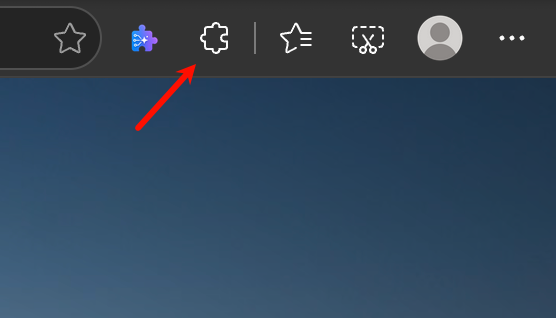
▲ Manage extensions via the menu
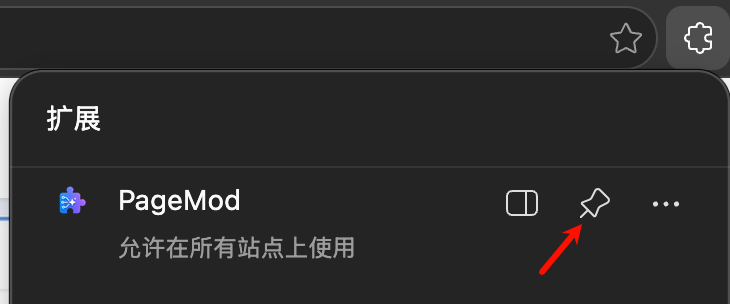
▲ Click the pin to fix it to the toolbar
Method 2: Load Unpacked Extension
- Go to the homepage to download the zip archive.
- Extract the zip to a permanent folder (Note: do not delete or move this folder, or the extension will stop working).
- Open the browser extensions management page, or enter
chrome://extensions/in the address bar (edge://extensions/for Edge).
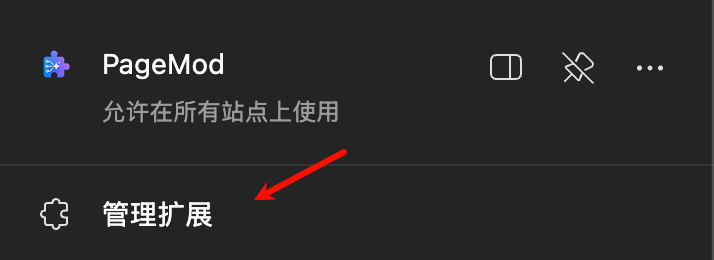
▲ Extensions management page
- Enable "Developer mode" in the top right.
- Click "Load unpacked" and select the folder from step 2.
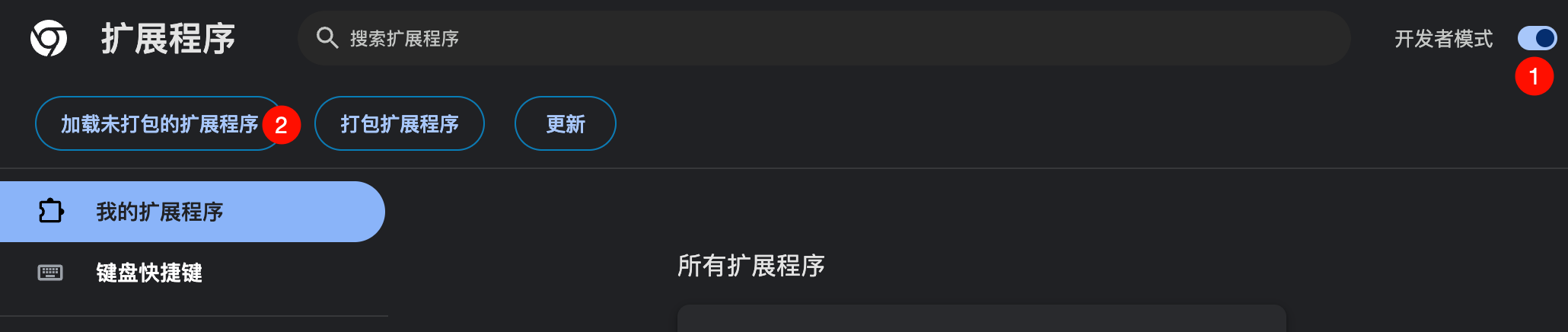
▲ Chrome — Load unpacked extension
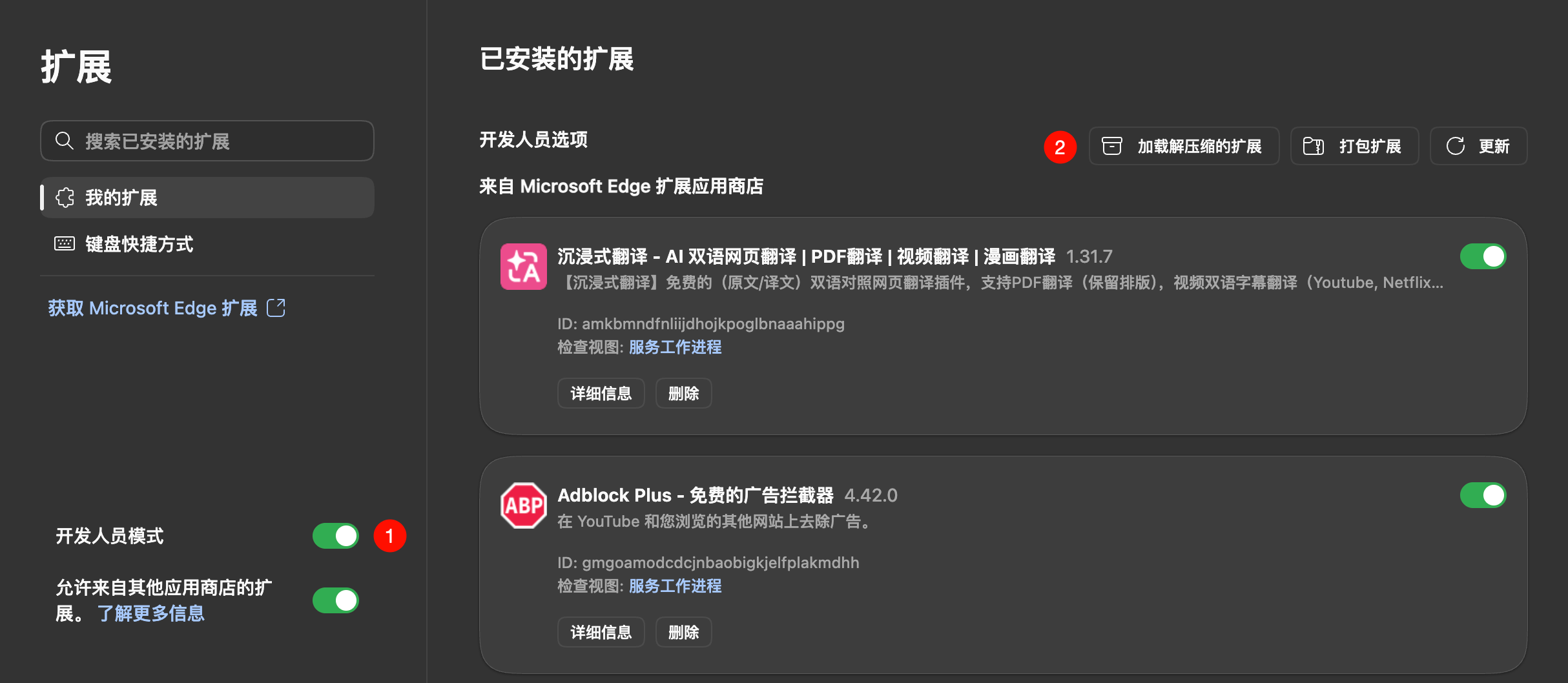
▲ Edge — Load unpacked extension
- Extensions installed this way cannot auto-update; repeat these steps manually to update.
Enabling User Script Support
Since PageMod uses Manifest V3's userScripts API, you must manually enable the relevant browser permission after installation, or scripts won't run.
Chrome
- Open the extensions management page, find PageMod in the list, and click "Details".
- Find "Allow user scripts" and toggle it on.
- Toggle the extension off and back on, or restart the browser for the setting to take effect.
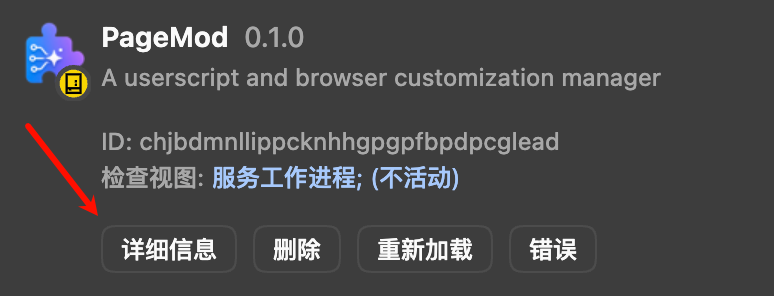
▲ Click "Details" to open extension settings
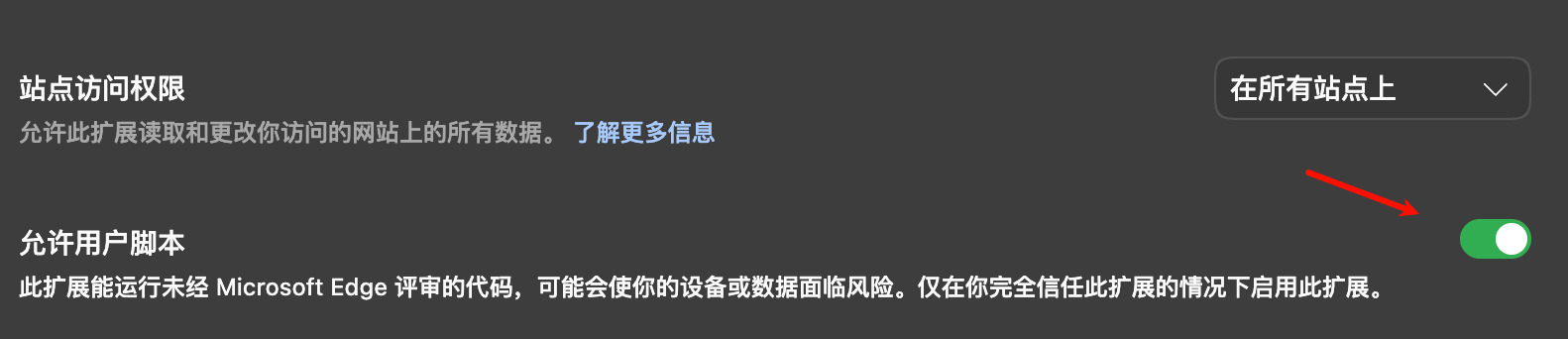
▲ Toggle on "Allow user scripts"
TIP
If your browser doesn't have the "Allow user scripts" option (Chrome 120–137), enable "Developer mode" in the top right instead.
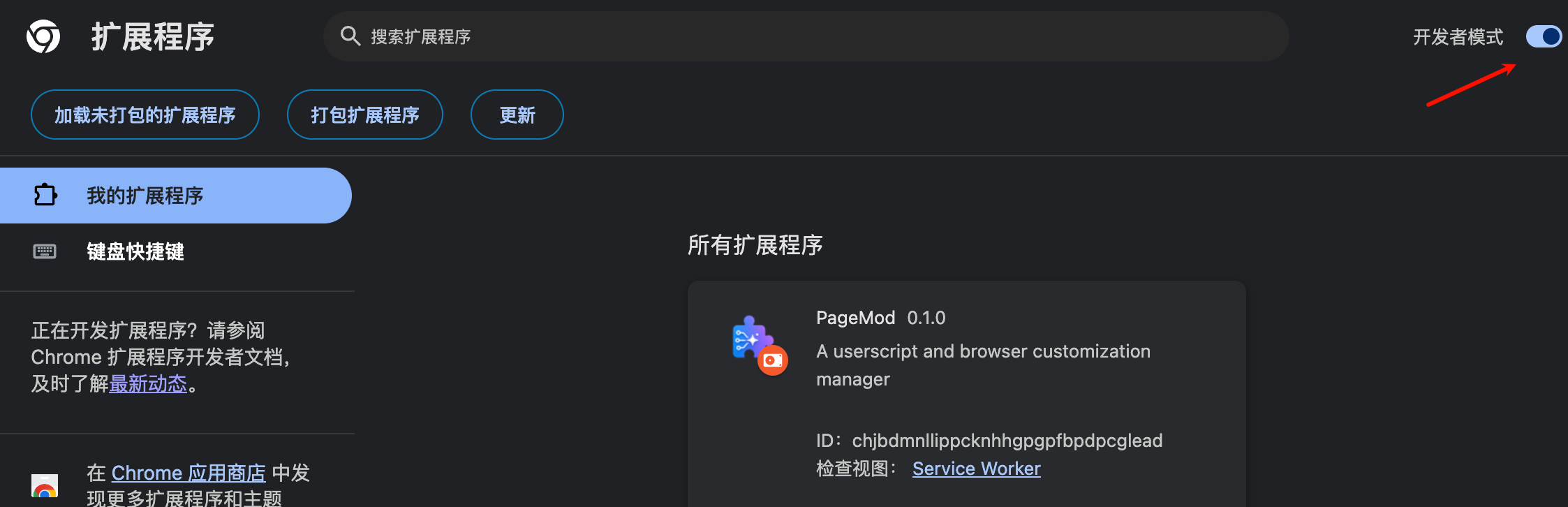
▲ Chrome — Enable "Developer mode"
Edge
- Open the extensions management page, find PageMod in the list, and click "Details".
- Find "Allow user scripts" and toggle it on.
- Toggle the extension off and back on, or restart the browser for the setting to take effect.
TIP
If your browser doesn't have the "Allow user scripts" option (Edge 120–137), enable "Developer mode" in the left sidebar instead.
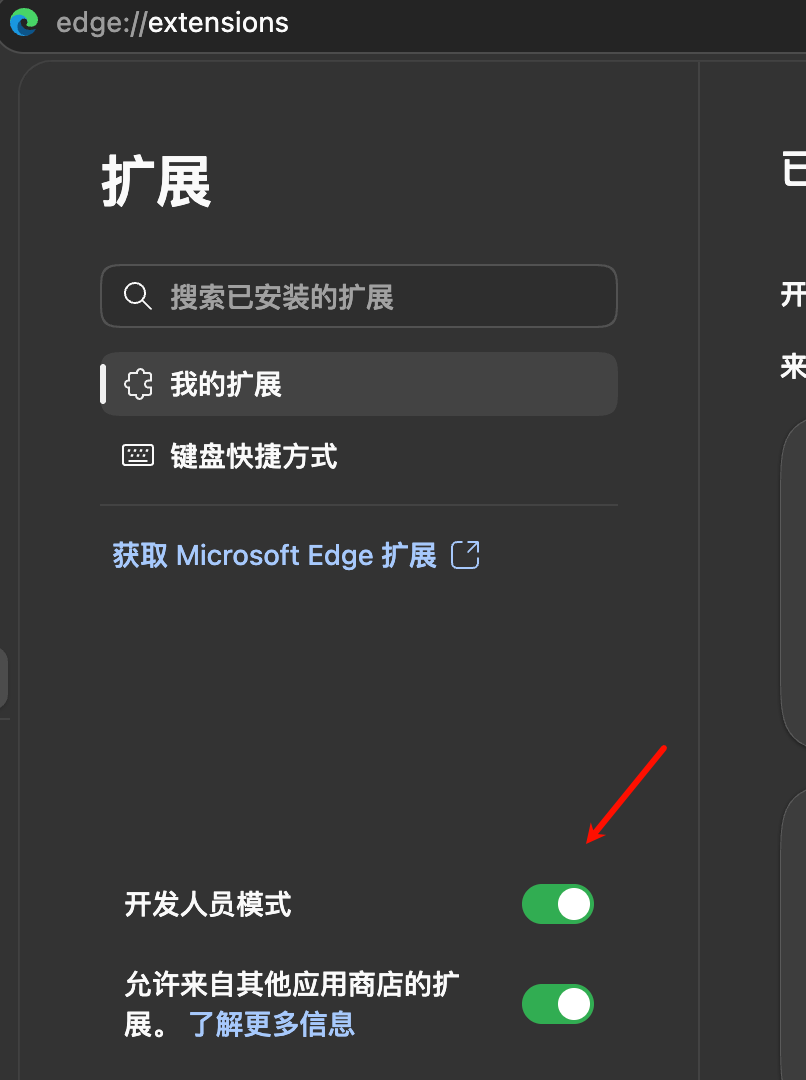
▲ Edge — Enable "Developer mode"
WARNING
If scripts still don't run after enabling, restart the browser or click "Reload" on the extension details page.
Registration & Login
You need to log in to use PageMod. Supported methods:
- OAuth Login: One-click sign in with Google, GitHub, or Microsoft.
- Email Login: Register and login using email verification codes.
Getting Started
- Click the PageMod icon in the toolbar to open the popup.
- Click "Settings" to open the settings page.
- In the "AI / Connection Settings" section, click the login button and choose OAuth or email to sign in.
- Once logged in, you're ready to go.